Retro: A Pocket Music Player for Apple Music
Updated October 6, 2026 · Marquee Features
In short
Retro is Marquee’s pocket music player style for Apple Music. Inspired by the iPod, it puts your song on a glossy screen above a wheel you tap to skip, play, and pause, in a body tinted to your theme. A matching Retro Player widget brings the same controls to your home screen. Retro is one of eight player styles in Marquee, a free Apple Music player for iPhone and iPad, and it’s part of Marquee Pro.
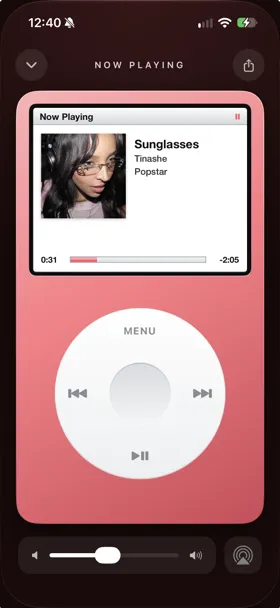
Your Apple Music on a pocket music player
If you carried an iPod, you’ll know this look. Retro turns Now Playing into a pocket music player: a white, glossy screen with a Now Playing title bar, your album art, the song, artist, and album, and the elapsed and remaining time above a progress bar. The body below it is tinted to your Marquee theme, so it can be as classic or as colorful as you like.
It plays the same Apple Music library and catalog you already use, with nothing to import. On iPad, the player sits beside the controls in landscape, like all eight of Marquee’s player styles.
How the wheel works
The wheel works like the iPod’s click wheel did for playback, with a tap for each control:
- Left — previous song.
- Right — next song.
- Bottom or the center button — play or pause.
- Menu — close the player.
Every press has a little haptic feedback, and the center button sinks like a real key. The wheel is for tapping, not turning: to jump to a different part of a song, drag the progress bar on the screen, and use the volume slider below the player for volume.
The Retro Player widget
The Retro Player widget puts the pocket player on your home screen in every size, from small to extra-large. The small size is the wheel on its own, with your album art in the center button. The wheel controls are real: tap left, right, the bottom, or the center to skip back, skip forward, or play and pause without opening the app, and tap Menu to jump to the full player. It works on tinted and clear home screens too. See the rest of the set on the music widgets page.
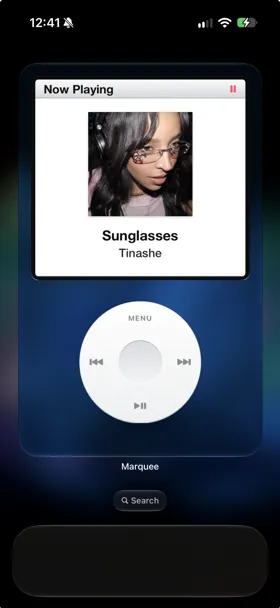
How to turn on the Retro player
- Download Marquee free from the App Store and allow access to Apple Music.
- Go to the Customize tab and pick the Retro player style. Styles beyond Classic are part of Marquee Pro, which starts with a free trial.
- Play something and open Now Playing. To add the widget, touch and hold your home screen, tap Edit, then Add Widget, and search for Marquee.

Try it with Marquee — free
The Apple Music player with eight player styles, animated widgets, themes, and Last.fm scrobbling. Requires an Apple Music subscription.
Frequently asked questions
Is Retro free?
The Classic player is free. Retro and the other player styles — Full-Screen, Vinyl, Cassette, CD, Equalizer, and Marquee — are part of Marquee Pro, which you can try free. The Retro Player widget is part of Marquee Pro too.
Does the wheel scroll like an iPod?
No. Retro’s wheel is for tapping: left and right skip songs, the bottom and center play or pause, and Menu closes the player. To move through a song, drag the progress bar on the screen.
Does the Retro widget control playback?
Yes. The Retro Player widget skips back, skips forward, and plays or pauses without opening Marquee, in every size from small to extra-large.
Does Retro work on iPad?
Yes. All eight player styles, including Retro, have landscape layouts on iPad.