An MP3 and FLAC Player for iPhone: Play Your Own Music Files
Updated November 3, 2026 · Marquee Features
In short
Marquee plays your own music files on iPhone and iPad: MP3, AAC, ALAC, FLAC, WAV, AIFF, and Opus. Import them from the Files app, open them in Marquee from the share sheet, or send them from your computer over Wi-Fi, then play them offline in any player style. Importing and playback are free, with no Apple Music subscription needed.
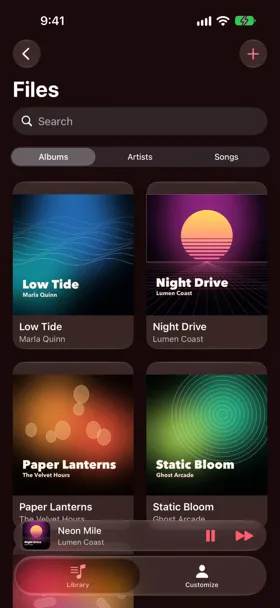
A music player for the files you own
The iPhone has no simple way to play the MP3s you already have. Apple’s Music app only plays files synced from a computer or uploaded to your iCloud music library, and the Files app previews one song at a time, with no albums, no queue, and nothing to look at.
Marquee is a music player that takes your files as they are. Import an album and it shows up under Library › Files with its cover art, track order, and artist, ready to play in a spinning vinyl record, a cassette deck, a pocket music player inspired by the iPod, or any of Marquee’s nine player styles.
MP3, FLAC, WAV, and more
Marquee plays MP3, AAC (M4A), Apple Lossless (ALAC), FLAC, WAV, AIFF, and Opus files. It reads each file’s tags, like title, artist, album, and track number, plus embedded album art, including the cover art inside FLAC files, and groups your songs into albums and artists. Search the Files screen to find any album, artist, or song.
Four ways to get your music in
- Import from Files. Pick songs from the Files app, iCloud Drive, or a connected drive. Select as many files as you like at once.
- The Marquee folder. Marquee has its own folder in the Files app, under On My iPhone. Drop music there and it appears in Marquee, even if you add it while the app is closed.
- Open in Marquee. Tap a music file in another app, open the share sheet, and choose Marquee.
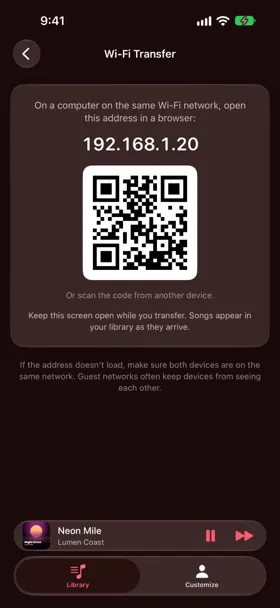
- Transfer from a Computer. Marquee shows a web address and a QR code. Open it in any computer’s web browser on the same Wi-Fi network and drag in your files or whole folders. No cable, no iTunes, no account, and no desktop app.
Marquee also turns on file sharing, so its folder should appear in Finder’s Files tab when your iPhone is connected to a Mac. For step-by-step instructions, see how to transfer music from a computer to iPhone.
No Apple Music subscription needed
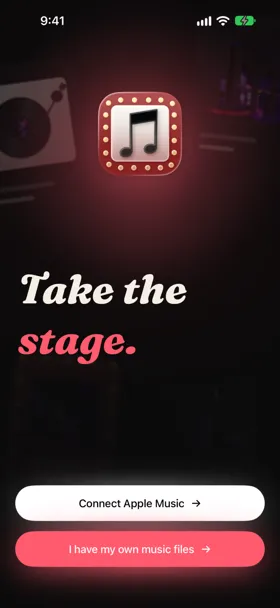
Marquee started as an Apple Music player, but your own files don’t need Apple Music. When you first open the app, tap “I have my own music files.” Marquee opens straight to your Library and hides the Apple Music tabs you won’t use.
If you do subscribe, your files sit alongside Apple Music in their own Files section of your Library. Apple Music features like the catalog, radio, and Upcoming Releases still need a subscription.
Plays offline, in the background
Your music files are stored on your iPhone, so they play with no internet connection: on a plane, underground, or anywhere without signal. Music keeps playing in the background and with the screen locked, with controls on the Lock Screen and in Control Center.
Files are copied into Marquee’s own storage on your device and included in your iPhone backups. Nothing is uploaded anywhere, and you can delete songs or whole albums in the app.
Everything Marquee does, for your files too
Your imported songs work like the rest of Marquee. They play in every player style, show on your Home Screen widgets, scrobble to Last.fm, count in Library Insights, and appear in Your Week, the Sunday recap you can share as a card.
How to import music files into Marquee
- Download Marquee free from the App Store. If you don’t use Apple Music, tap “I have my own music files.”
- Go to Library, then tap Files (or Import Music if you haven’t added any yet).
- Tap the Add button, then choose Import from Files, or Transfer from a Computer to send files over Wi-Fi.
- Tap an album, artist, or song to play it.

Try it with Marquee — free
The Apple Music player with nine player styles, animated widgets, themes, and Last.fm scrobbling. Requires an Apple Music subscription.
Frequently asked questions
Can I play MP3 files on iPhone without iTunes?
Yes. Import them into Marquee from the Files app, or send them from your computer’s web browser over Wi-Fi with Transfer from a Computer. No iTunes, cable, or sync needed.
Can iPhone play FLAC files?
Yes. The Files app can preview a FLAC file, and Marquee plays FLAC files as a music library, with tags and embedded cover art, alongside MP3, AAC, ALAC, WAV, AIFF, and Opus. See <a href="/guides/play-flac-on-iphone/">how to play FLAC files on iPhone</a>.
Do I need an Apple Music subscription?
No. Importing and playing your own music files is free and works without Apple Music. Tap “I have my own music files” when you first open Marquee.
Does it work offline?
Yes. Your files are stored on your iPhone, so they play with no internet connection. Transfer from a Computer needs both devices on the same Wi-Fi network, but not the internet.
Is there a limit on how many songs I can import?
No. The only limit is your iPhone’s storage. Importing and playback are free.
What’s free and what’s in Marquee Pro?
Importing, playback, the Classic player, Lock Screen controls, and Last.fm scrobbling are free. Marquee Pro adds the other player styles, the styled widgets, Library Insights, themes, and app icons, with a free trial or a one-time lifetime unlock.
Can I add my music files to playlists?
No. Imported songs live in Library › Files, where you can browse them by album, artist, or song.